
Still Seeing the Old Website?
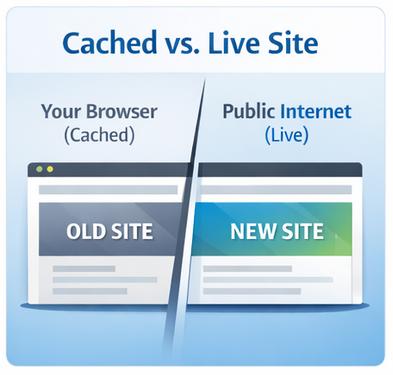
Why you may still see the old website after we’ve launched the new one. This is because your browser or internet service provider has the old site address stored temporarily in it’s cache (or memory). This is temporary. Let me show you how to see your new website and how you can be confident your visitors are seeing it as well!
|
|
Why You Might Still Be Seeing the Old Website After Launch… and Why That’s Okay!You finally launched your new website — everything looks perfect, the new design is live, and the new server is active. But then you visit your site… and it still shows the old version. Don’t panic. This is one of the most common (and completely normal) things that happens after a website launch. Your new website is live, but your browser or internet provider may still be showing you a cached copy of the old one. |
|
|
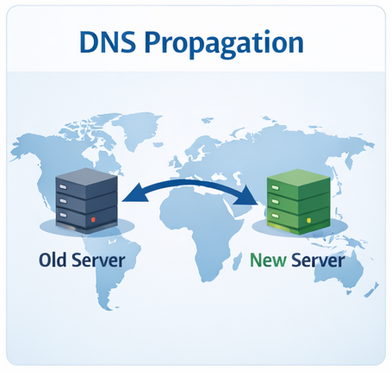
Why This HappensWhen a website moves to a new server, your domain name has to update across thousands of internet providers around the world. This process is called DNS propagation. To keep the internet fast, browsers and internet providers store “cached” versions of websites. That means:
So while you might see the old version, your customers may already be landing on the new one. |
|
|
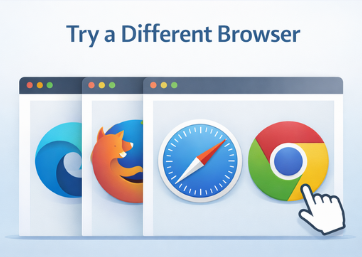
Step 1 – Try a Different BrowserThe easiest first test: Open your website in a browser you normally don’t use. If you normally use Chrome, try Edge, Firefox, or Safari. If the new website shows there, you’ve confirmed the site is live — your main browser is just holding onto an old cached copy. |
|
|
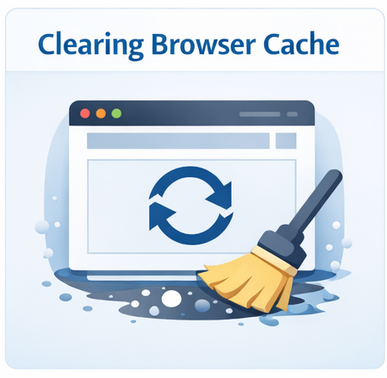
Step 2 – Clear Your Browser CacheIf you still see the old version, clear your browser cache and reload the page. This forces your browser to pull a fresh copy of your site directly from the new server instead of loading stored data. This can be done by pressing… |
|
|
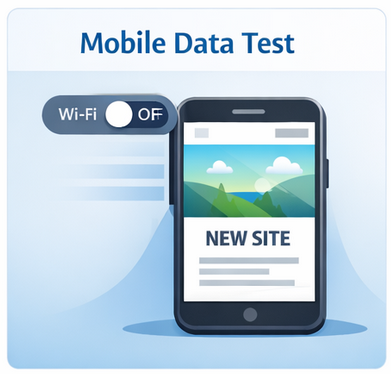
Step 3 – Test From Mobile DataTurn off Wi-Fi on your phone and open your website using cellular data. This connects you through your phone carrier instead of your home internet provider. If the new website appears on your phone but not on your computer, your home ISP is still caching the old server — and it will update automatically, usually within 24–48 hours. |
|
|
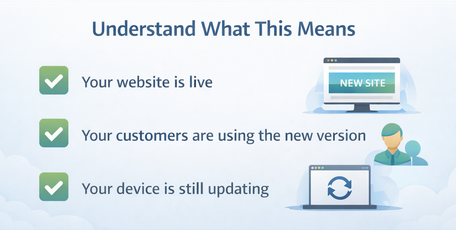
Step 4 – Understand What This MeansAt this point you can relax. Your website is live. Your customers are already finding and using the new version. Nothing is broken. Nothing needs to be fixed. |
⌛ How Long Does This Last?Most caching clears within a few hours. In rare cases, it can take up to 48 hours depending on the internet provider. Once the cache expires, your browser will automatically show the new website permanently. |
✔️ Bottom LineSeeing your old site after launch does not mean your new site isn’t live. It only means your device hasn’t refreshed yet. Your new website is working. Your visitors are seeing it. You’re already live. |
If you still have questions, feel free to call your Account Manager right now!
That’s what we’re here for!